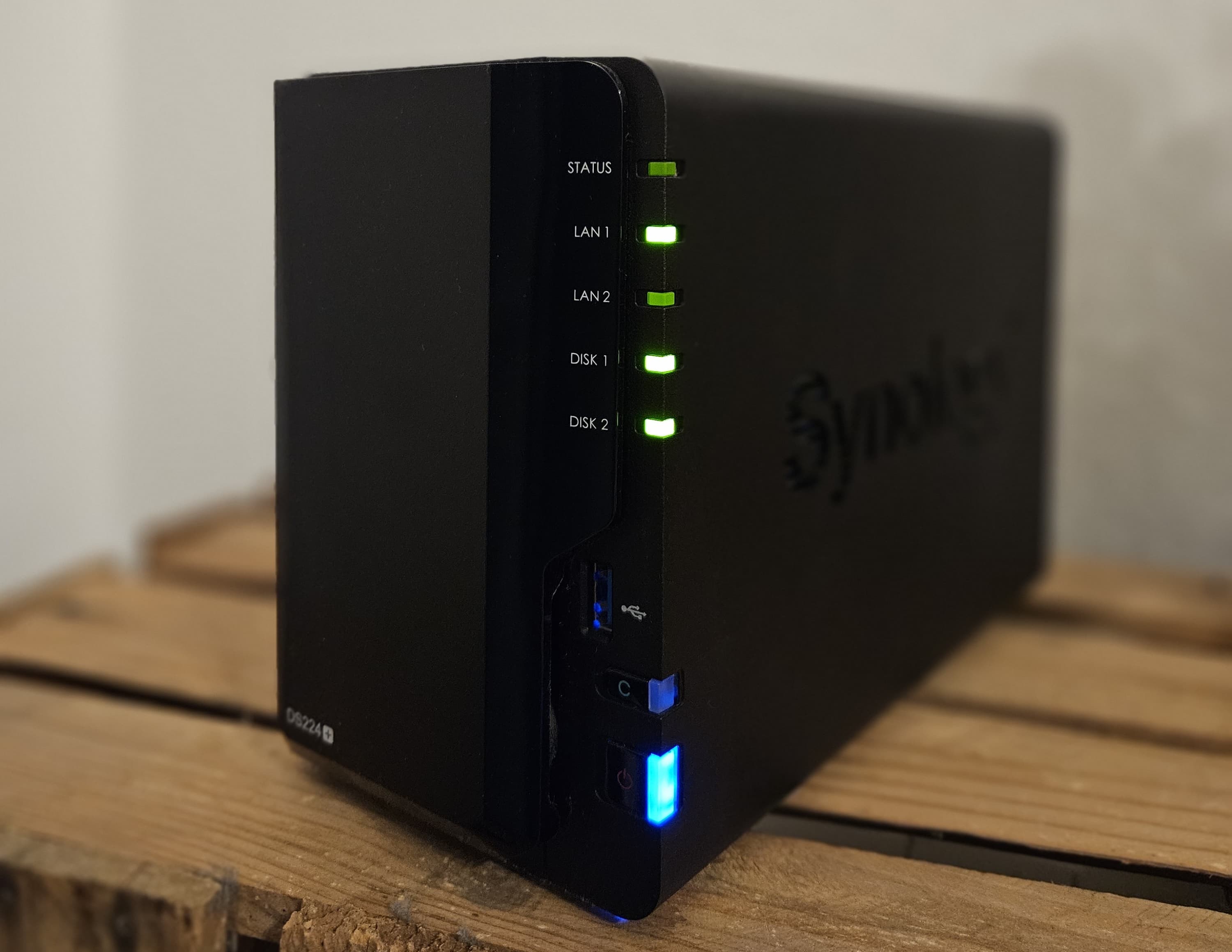
Operating a Synology NAS behind a VPS as a reverse proxy provides speed, security, and hassle-free access for users of your private cloud.
In this article I will guide you through the complete process of:
- setting up a virtual private server (VPS)
- configuring nginx as the reverse proxy for Synology Drive and Synology Photos,
- obtaining Let’s Encrypt SSL certificates for secured connections to your VPS with a custom domain
- implementing VPS security measures
- making everything ready to run independently with minimal or no maintenance
If you want to skip the introduction just jump directly in to the guide: Guide Part 1.
Table of Contents
Introduction: Why using a VPS and a reverse proxy?
While some users solely access their NAS from a local network, most users want to access their local NAS from anywhere. There are multiple ways to establish such a connection and while some are quite easy to set up, they lack security or have other limitations. More secure options often require increased monetary efforts or cumbersome login procedures with different tools/layers.
So I was basically searching for a method that combines:
- A secure connection from my local NAS to the outside world
- No bandwidth/speed limitations (despite the limit of my own internet connection)
- A custom domain for a professional look
- No additional barriers for the users of the NAS
- Low/no additional costs
After some research I found out, that a personal VPS to act as a reverse proxy in front of my local Synology NAS, is able to combine all of these points. But to be fair it also provides a non-negligible disadvantage: A bit of work is initially necessary to get everything up and running but that’s why I created this guide for you.
Before we start with the guide an overview of different methods if provided in the next section.
Overview of methods to access a Synology NAS from the Internet
Synology’s QuickConnect
Probably the simplest solution is using Synology’s QuickConnect. By activating QuickConnect, you can assign a unique QuickConnect ID, that is connected to the NAS. If you want to enter files on the go, e.g. via the Synology Drive mobile App, you just need to enter the QuickConnect ID and your credentials.
The advantage here is the easy setup and that you don’t need to expose the NAS to the internet. But the big disadvantage is, that (in most cases) Synology’s relay servers are used for data transfers, slowing everything terribly down. Also while QuickConnect is generally seen as safe, one needs to consider whether they want to hand over the control over their login/data transfers to another company.
Pros:
- Easy to set up
- Just works
Cons:
- Significantly reduced data transfer rates
Port Forwarding
By opening specific ports on the Router and forwarding them to the NAS, the NAS can directly be accessed via the public IP. While this is easy to set up, you enable direct access from the Internet to your NAS, which is often not desired. But even if desired, some internet providers don’t even assign public IPv4 addresses anymore, making this option impossible in the first place.
Pros:
- Fast data transfer rates
Cons:
- NAS directly exposed to the internet
Dynamic DNS (DDNS)
With DDNS you are able to assign a custom domain to a changing IP address, but it’s still required to forward ports exposing your NAS directly to the internet. The public IP address can still be determined so DDNS is more like a convenience than a security feature.
Pros:
- Fast data transfer rates
- More convenient than port forwarding
Cons:
- NAS directly exposed to the internet
VPN
Using a VPN, like Tailscale for instance, allows access to the NAS without the need to open ports. Speed-wise it’s located between QuickConnect and directly accessing the NAS via forwarded ports. It’s very secure, however, you always need to connect to the VPN first, before being able to use Synology Drive or Photos. While this is acceptable for a single-user, it’s often not feasible if you want to provide the Drive/Photos service to other users, e.g. family members.
Pros:
- High level of security
- Fast data transfer rates (usually)
Cons:
- Requires an additional software/login layer for each user
Cloudflare tunnel
A Cloudflare tunnel is the easiest way to establish a high-speed and secure connection with a custom domain to a local Synology NAS. Even the setup is super easy due to Cloudflare’s great documentation. A Cloudflare tunnel was also my choice in the beginning and I had already set up everything until I discovered a crucial limitation, that unfortunately made it completely unusable for my (and I think most Synology users) use cases: There is a limit of 100 MB for a request body size.
That basically means that you can’t send files larger than 100 MB in one request through the secured tunnel when using Cloudflare’s secured tunnel. Even in an Enterprise plan you still have a limit of 500 MB, which can easily be exceeded by a larger file uploaded through Synology Drive or, e.g. a recorded video uploaded through Synology Photos.
Pros:
- High level of security
- Fast data transfer rates
- Deployment requires minimal user-side changes
Cons:
- File size limitation too strict for most NAS applications
VPS as reverse proxy
Since we want to avoid to directly expose our NAS to the internet, we can’t get around the necessity of some middleman. In the case of QuickConnect the middleman is Synology with its relay servers. For VPN or cloudflare tunnel it’s the network of the VPN or tunnel provider. While they provide security, they often come with some limitations (e.g. bandwidth limitations), additional costs, or cumbersome setups for the users (e.g. additional login steps to a VPN).
We want to avoid all of that, so our only choice is a virtual private server (VPS) as a reverse proxy. Per definition, a reverse proxy hides the IP of our local Synology NAS, which acts as our additional security layer. Since it’s our own VPS, we are in full control of (bandwidth-) limits to apply. Also when choosing the right provider, you don’t have any costs for the VPS (despite a quite low amount for a domain), and your NAS users don’t face any difficulties in the migration to the new connection-type.
But to be fair: Setting up a VPS as a reverse proxy and configuring everything properly and secure is by far more work than all other methods combined. But the work is fully on the admin side and not the user side (since we don’t want to scare off our users :-)). And you are rewarded with a fast, secure, and cost-effective solution that you have full control over.
Pros:
- High level of security
- Fast data transfer rates
- Deployment requires minimal user-side changes
Cons:
- More effort to set up (but only on admin side)
Other methods and disclaimer
The methods mentioned above are not exhaustive but the most common ones. Also, the technologies mentioned before and in the following guide are not the only possibilities. I have chosen them since they are well-established and well-documented. Maybe there is something out there that’s even faster, safer and easier to set up but that might be a topic for another guide in the future. For instance there is Pangolin that can be used to self-host a tunneled reverse proxy server, which might be a hot candidate.
But for now, we stick to the established method of using a VPS with nginx as the reverse proxy and jump into the guide starting with the next section.
Guide Part 1 - Prerequisites and Setting up a VPS
Part 1 focuses on some prerequisites, some thoughts which VPS provider to choose, spinning up a VPS, and adjusting some initial network settings.
Prerequisites
It is assumed that an up and running Synology NAS is already present and (Synology) NAS security best practices are in place. Things like secure passwords, 2FA, software updates and so on. Details can be found in the official Synology knowledge base. Security topics will also be covered in this guide, but we will focus on security settings regarding the VPS and reverse proxy.
It’s also required, that a custom domain is available. You can choose any domain and registrar, but you need to be able to change DNS settings. I went with inwx in this guide. Otherwise, nothing special is required beforehand and everything else is explained in the following guide.
Choosing the VPS provider
The first step is to choose your provider. Fortunately, operating a reverse proxy doesn’t need a lot of resources, so a really basic VPS with just 1 or 2 cores and maybe 1 GB RAM is totally sufficient.
There are a lot of providers but if you want a no-cost option, there is (amongst others) AWS with specific EC2 instances, that are completely free in the first 12 months of account creation. Also, Azure offers VM instances that are free for the first 12 months. But my personal favourite is the Oracle cloud. They offer a permanent free-of-charge VPS instance in their “always-free” tier.
You can choose between an AMD or an ARM instance. I selected the AMD instance but just because I am more familiar with AMD processors. These are the specs of an always-free AMD VM instance:
- Shape: VM.Standard.E2.1.Micro
- Number CPUs: 1/8th of an OCPU* with the ability to use additional CPU resources
- RAM: 1 GB
- Bandwidth: 50 Mbit/s**
- Image/OS: Multiple Linux distros available
*Oracle offers OCPUs instead of vCPUs. One OCPU corresponds to two vCPUs.
**There is a bandwidth limitation, but it should be sufficient for normal NAS tasks. Especially, when users are downloading files from the NAS (so when my NAS is uploading) it doesn’t matter since (at least in Germany) internet providers also usually don’t offer more than 50 Mbit/s bandwidth for file uploads.
Regardless of the VPS provider and VPS instance chosen, as long as you select some kind of conventional Linux distribution, you are good to go. I have chosen Ubuntu 24.04 (minimal).
After the instance was created and is up and running, we need to check the network security settings first before we can dive into the reverse proxy installation.
Network security settings
Regardless if you are using AWS, Azure, Oracle or something else, they all have some kind of network access control or security groups/settings. Every provider has a different name for it but the purpose is always the same: Blocking or allowing the access to the VPS on specific ports from/to specific IP addresses.
What do we want to achieve:
- SSH access (Port 22) should only be allowed from the one IP address from which you want to control the VPS
- HTTP (Port 80), HTTPS (Port 443), and Port 6690 (specific Synology Port explained later) access should be allowed:
- Initially, also only from your IP for testing purposes
- Later from the complete Internet
Since I went with Oracle in this guide, I will guide you through the settings in the Oracle Cloud user interface.
First you need to go into the settings for your running instance (in the menu on the left Compute/Instances). Then you go to the “Networking” tab and click on your subnet. There you click on the “Security” tab, and you can see a default security list for your subnet. When you enter the security list you can enter the tab “Security rules”, where you find some Ingress- and some Egress rules.

Figure 1: Oracle Cloud Infrastructure (OCI) Ingress- and Egress rules.
Here you can edit/add the following:
- Change the source IP for Port 22 (SSH) to your IP only (IP in the format x.x.x.x/32, the “/32” suffix means “exactly that IP”)
- Add entries for Port 80, 443, and 6690, also with your source IP
You don’t need to change anything in the Egress rules. By default, all outgoing connections from your VPS to the internet are allowed.
For now, we are done in the Oracle Cloud user interface but will come back to it later. In the next steps, some oracle specific network security settings are explained, that might not be necessary when using Azure or AWS.
Oracle-specific network security settings
As mentioned in the section prior, we needed to specifically allow/block the ports we need in the Oracle Cloud user interface. Every cloud provider has something like this but Oracle is a bit special in this case:
While for most of the VPS providers like AWS or Azure it’s sufficient to adjust the network security settings in the user interface. With Oracle, you also need to adjust your settings on the VPS itself.
So just because port 80/443 were opened in the user interface doesn’t mean they were opened on the VPS. To open the ports on the VPS you need to manually edit the iptables.
First you can check which ports are already opened using:
sudo iptables -L INPUT -n -v --line-numbers
Usually, only port 22 is opened by default. To add port 80, 443, and 6690, enter the following:
sudo iptables -I INPUT 5 -m state --state NEW -p tcp --dport 80 -j ACCEPT
sudo iptables -I INPUT 5 -m state --state NEW -p tcp --dport 443 -j ACCEPT
sudo iptables -I INPUT 5 -m state --state NEW -p tcp --dport 6690 -j ACCEPT
sudo netfilter-persistent save
Now, our VPS is reachable on all necessary ports. Before we start setting up our reverse proxy, we perform one quick adjustment on the VPS since we are already in the SSH session.
Enable VPS auto-updating
Ubuntu and its packages receive regular updates, but we don’t want to manually update them. In the end, we just want a maintenance-free setup, so that we don’t always need to check the status of our VPS. Ubuntu offers several options to auto-update the running OS as described here.
The option using the “unattended-upgrades” packages was chosen and activated as described in the linked documentation. This creates a cron-job that regularly checks for updates and applies them.
Guide Part 2 - Setting up nginx as the reverse proxy on the VPS
Part 2 focuses on the installation of nginx on the VPS, configuring nginx, and establishing a secure SSL connection from the outside to the VPS.
Install nginx
We choose nginx, since it’s well-established as a reverse proxy. To install follow the latest Ubuntu installation guide. The commands are also copied in the following, with a warning that it might be outdated by the time you read this:
[Click to see commands]
Install prerequisites:
sudo apt install curl gnupg2 ca-certificates lsb-release ubuntu-keyring
Set up the apt repository for stable nginx packages:
echo "deb [signed-by=/usr/share/keyrings/nginx-archive-keyring.gpg] \
http://nginx.org/packages/ubuntu `lsb_release -cs` nginx" \
| sudo tee /etc/apt/sources.list.d/nginx.list
Use the nginx package repository instead of Ubuntu’s:
echo -e "Package: *\nPin: origin nginx.org\nPin: release o=nginx\nPin-Priority: 900\n" \
| sudo tee /etc/apt/preferences.d/99nginx
Install nginx:
sudo apt update
sudo apt install nginx
After installation start nginx via:
sudo systemctl start nginx
And check the status if nginx was successfully started:
sudo systemctl status nginx
To check if really everything works until now, we can try to reach our VPS via nginx using the VPS IP:
http://"YOUR_PUBLIC_VPS_IP"
If you see a default nginx test page the installation was successful and your network security settings correctly set.
Initial nginx configuration
I will develop the nginx configuration step by step for a better understanding what is happening and why we are choosing certain settings. If you want to jump to the final config, see Guide Part 5.
When you have a fresh nginx installation the main config is loaded upon startup. You find the main config under:
/etc/nginx/nginx.conf
This main config should (usually) not be altered and will just be extended with further separate config files. When looking into nginx.conf you can see,
that all .conf config files in the conf.d directory are loaded by the main config:
/etc/nginx/conf.d/*.conf
In the conf.d directory currently only one config is stored called default.conf with the following contents:
server {
    listen       80;
    server_name  localhost;

    location / {
        root   /usr/share/nginx/html;
        index  index.html index.htm;
    }

    # redirect server error pages to the static page /50x.html
    #
    error_page   500 502 503 504  /50x.html;
    location = /50x.html {
        root   /usr/share/nginx/html;
    }
}
As you can see, this default config returns the default landing page mentioned here, expressed by the first “location” block. It’s also using just HTTP and not HTTPS since the server is listening on port 80 only and no SSL certificates are installed yet.
In the next steps, we are now adding a custom config to link our domain to nginx on the VPS.
Creating a custom config for domain-VPS link
Also, the default.conf file should not be altered. Instead, we add a new config file called syno.conf in the
/conf.d/ directory. You can either create the config file directly in your SSH session in this directory or, what I personally recommend,
you can create a Git repository storing the config and perform your changes in an IDE on your computer.
You can then clone your repository on the VPS in the home directory and create a symlink on the VPS, like so:
sudo ln -s /home/ubuntu/<your repo name>/nginx/conf.d/syno.conf /etc/nginx/conf.d/syno.conf
As you can see I recreated the same directory structure in my repository as on the VPS. If you choose another structure you need to adjust the symlink accordingly.
So when there is a new config, you just need to git pull on the machine and nginx directly gets the new config through
the symlink. After restarting nginx via sudo systemctl restart nginx the new config is applied.
But let’s edit syno.conf. As mentioned above we do it step by step and the first step is to secure our connection
and link it to our domain. To establish the domain-VPS-link on the VPS site, we need to make the following edits to our
syno.conf file:
server {
    listen 80;
    server_name www.yourdomain.com yourdomain.com;

    # Redirect HTTP to HTTPS
    return 301 https://$host$request_uri;
}

server {
    listen 443 ssl;
    server_name www.yourdomain.com yourdomain.com;

    ssl_certificate /etc/letsencrypt/live/yourdomain.de/fullchain.pem;
    ssl_certificate_key /etc/letsencrypt/live/yourdomain.de/privkey.pem;

    # copied from the default.conf to get the default nginx welcome page
    location / {
        root   /usr/share/nginx/html;
        index  index.html index.htm;
    }

}
In this custom config nginx is now listening on port 80 (HTTP) and 443 (HTTPS) but if connections are established via insecure
HTTP requests, the request is redirected to HTTPS. We also set the basis for domain-VPS-link by entering our domain name (with
and without www) and we already set the paths to our SSL certificates that we will obtain later.
For testing purposes we just want to display the default nginx landing page again, that’s why we copied the location block
from the default.conf into syno.conf.
To finalize the domain-VPS link we need to make changes on the domain side through the DNS settings provided by our domain registrar.
DNS settings
To adjust the DNS settings you need to log into your domain registrar and change the A-record to the public VPS IPv4.

Figure 2: A-records for your domain.
Here we set www and the “empty” root domain to our VPS IP (orange boxes), which corresponds to www.yourdomain.com
and yourdomain.com mentioned in syno.conf. We also created some subdomains photos.yourdomain.com and
drive.yourdomain.com (blue boxes) but these subdomains are optional and could be used for further customization of our reverse proxy.
However, they are not really necessary since both Synology Drive and Photos are accessed via the same ports, so we don’t need to distinguish
between these applications via a subdomain. Thus, these subdomains are not used in this guide and later in Guide Part 4
it’s explained why. But I keep these subdomains here for demonstration purposes.
In this section we linked the VPS/nginx to the domain via the nginx config, and we linked the domain to the VPS/nginx via the DNS settings. So we are now set to secure the connection with an SSL certificate in the next section.
Obtain Let’s Encrypt SSL certificate
To enable secure connection via HTTPS on port 443 an SSL certificate is required. Some/most registrars offer SSL certificates but the easiest, free, and most common provider is Let’s Encrypt. With Let’s Encrypt’s certbot it’s a straightforward process, and it even performs an auto-renewal of certificates that are about to expire.
But before we start with certbot, we need to make sure that your VPS can be reached on port 80 and 443 from the internet. Therefore, you might need to get back into your network security settings to change that. Then, certbot is installed according to this documentation.
Since the provided documentation is in German, I will copy necessary commands in the following. First we install certbot:
sudo apt install certbot
sudo apt install python3-certbot-nginx
Then, we perform a registration:
sudo certbot register
After which all domains and subdomains are registered:
sudo certbot --nginx -d yourdomain.com -d www.yourdomain.com
When the command was executed successfully, the certificate and the private key are saved in the following locations:
/etc/letsencrypt/live/yourdomain.com/fullchain.pem and /etc/letsencrypt/live/yourdomain.com/privkey.pem
These locations should correspond to the locations mentioned in the “custom nginx config”. If that’s not the case, you need
to adjust syno.conf accordingly.
To check if everything works correctly, you should now be able to access your VPS via a secure connection:
https://yourdomain.com
If you see the default nginx page and the lock symbol next to the domain in the address field of your browser, you successfully established a secure connection to your VPS!
Since the certificates are now obtained, you don’t need full internet access on port 80/443 for now and I recommend limiting the access back to your IP again, as long as we haven’t finished our configuration.
In this section we established the secure domain-VPS connection or basically the connection from the outside world to the VPS. To secure the complete path we are now establishing a secure VPS-NAS connection in the next section.
Guide Part 3 - Establish a secure connection between the VPS and the Synology NAS
Currently, when entering your domain in a browser we are just routed to a default nginx page. But the aim is to route to our Synology NAS. Therefore, we need some kind of secure connection between the VPS and the NAS.
Choosing the VPS-NAS connection type
Since our VPS is also just a computer on the internet, we have the same options as mentioned earlier, to establish a connection to the Synology NAS. What we now need is a fast and secure connection. To make it short, we are using Tailscale VPN.
But why did we reject a VPN in the beginning and are now using it again? Could we not have just used a VPN in the beginning and leave out all that “VPS-stuff”?
No, we rejected a VPN connection (as alternative to VPS with reverse proxy) due to the fact that NAS users would have to fight through an additional software/login layer to interact with the NAS. So they would always have to activate their VPN before they could use, e.g. Synology Drive or Photos. That’s not really user-friendly.
But here, only the admin will establish the connection once. NAS users will later just enter yourdomain.com and they are good to go.
And why are we using specifically Tailscale? Since there is great support by Synology and great documentation. We also don’t have (noticeable) limitations and I personally have great experiences with it.
To establish the VPS-NAS connection via VPN, the VPS and the NAS need to be put into the VPN separately. Let’s start with the NAS.
Adding the NAS to the Tailscale VPN
I won’t go much into detail here since there is an excellent documentation from tailscale how to connect your Synology NAS to the Tailscale network.
To briefly summarize the documentation, you just need to install the Synology app from the Synology Package Center, login into your Tailscale account, and finally do some manual changes in DSM to enable outbound connections. When this is set up your NAS basically stays forever in the Tailscale network, even after restarting the NAS. I followed the tutorial a year ago and since then I never had to fix anything regarding Tailscale.
After that we bring the VPS into the VPN.
Adding the VPS to the Tailscale VPN
The Tailscale documentation has got us covered also here.
You need to install Tailscale like any other linux package via apt but for logging into your tailscale account you need to use an external browser. But the installation procedure will guide you through the steps.
When both your VPS and NAS are in the same VPN we can continue by establishing the actual reverse proxy connection.
Guide Part 4 - Configure nginx as a reverse proxy to the NAS
In the last status of our nginx configuration we already had a secure SSL connection from the outside world, but it still routes to the default nginx landing page. In the next steps we want to route to Synology’s DSM login page. So to actually work as a reverse proxy.
Why reverse proxying to the DSM login page
By default, Synology’s DSM login page is reached via port 5000 (HTTP) or 5001 (HTTPS). But also the mobile applications for Synology Drive and Synology Photos are using these ports, or the DSM login, respectively.
So when establishing the reverse proxy connection for Synology Photos and Drive mobile applications, we also have a connection to the login page as a side effect.
The Synology Drive desktop app uses a different approach and will be discussed later in detail. For now, let’s just reverse proxy to the DSM login page.
Establish the reverse proxy connection to the DSM login page
To establish the reverse proxy connection we need to adjust the nginx configuration. We build on top of the last status of the configuration.
In the following nginx configuration, we just replaced the location section with the actual IP address of our NAS.
Since both the NAS and the VPS are in the same Tailscale VPN, we can enter the Tailscale IPv4 address of the NAS. You can find
that IP after logging into your Tailscale account and inspecting your devices in the dashboard on the home screen. Enter that IP
in the proxy_pass line. Important: use https as well as port :5001/ with the forward slash exactly as in the config below.
The other lines for proxy_set_header are just some additional elements that are passed with the request through the proxy.
server {
    listen 80;
    server_name www.yourdomain.com yourdomain.com;

    # Redirect HTTP to HTTPS
    return 301 https://$host$request_uri;
}

server {
    listen 443 ssl;
    server_name www.yourdomain.com yourdomain.com;

    ssl_certificate /etc/letsencrypt/live/yourdomain.de/fullchain.pem;
    ssl_certificate_key /etc/letsencrypt/live/yourdomain.de/privkey.pem;

    location / {
        proxy_pass https://TAILSCALE_NAS_IP:5001/;
        proxy_ssl_verify off;   # can be used since it corresponds to the connection VPS<->NAS, which goes through secured VPN
        proxy_set_header Host $host;
        proxy_set_header X-Real-IP $remote_addr;
        proxy_set_header X-Forwarded-For $proxy_add_x_forwarded_for;
        proxy_set_header X-Forwarded-Proto $scheme;
    }

}
After restarting nginx on the VPS using sudo systemctl restart nginx your new config is active, and you are now already
able to use the mobile applications for Synology Drive and Synology Photos. For this you just need to log out on the devices and
re-login using your domain instead of a QuickconnectID or IP address.
Before we go to the final hardening of the connections, we want to establish the last connection that is necessary to also make the Synology Drive desktop app usable.
Establish a stream connection for Synology Drive Desktop
Before we dive into setting up this connection a quick note up front: If you don’t plan to use the Synology Drive Desktop app and just want to use the mobile applications just skip this section. Otherwise, it’s too much unnecessary work.
For the Synology Drive Desktop application we need a special type of connection since it is not accessed via the DSM login page (port 5000/5001) but via port 6690.
While doing my research for setting everything up I also tried various reverse proxy strategies. So e.g. to proxy_pass
to port 6690 when entering a subdomain like drive.yourdomain.com or something. However, reverse proxying is not possible
since this is some kind of custom protocol and not a regular HTTP/HTTPS connection like we have it for port 5000/5001. So we need
to go a different route and set up a TCP stream to the NAS.
For this we need to create/edit different configs. At first, we need to edit the main nginx configuration file usually found
under etc/nginx/nginx.conf. In the top level of the file you add the following: include /etc/nginx/stream.conf.
As you already see by the command we need another config file called stream.conf, which is on the same level as
the main confignginx.conf and on the same level as the directory conf.d, that we used before to store our custom syno.conf.
I recommend the same procedure as discussed in the section for the custom config
to create a config file in a Git repository and creating a symlink like so:
sudo ln -s /home/ubuntu/<your repo name>/nginx/stream.conf /etc/nginx/stream.conf
As you can see, I recreated the hierarchy in the repository to avoid confusion later on.
The stream.conf file itself is quite simple:
stream {

    server {
        listen 6690;
        proxy_pass TAILSCALE_NAS_IP:6690;
    }

}
You only need to enter your Tailscale NAS IP as in the section before (but in this case don’t add https://).
Now, your requests on port 6690 are directly streamed to the NAS. Unfortunately, there is one step missing to make it fully work with the Synology Drive Desktop app: Since we are now directly streaming to port 6690 and not reverse proxying, we also need to secure that connection with SSL.
Securing the stream connection with SSL
If you skipped the last section, you can also skip this section
The issue that we basically want to resolve is, that with the stream, we not only need an SSL certificate on the VPS but now also on the NAS directly. So we either need to transfer the certificate from the VPS to the NAS or we need a new certificate on the NAS.
Transferring a certificate once is really not a problem, since Synology DSM allows an easy import of certificates in the DSM user interface via system control. But due to the auto-renewal of the certificate every two months (or so) we need something automated.
While certbot offers deploy hooks to automatically push certificates somewhere else when a new certificate is issued, the setup is quite cumbersome, and it’s easier to just request new certificates on the NAS directly. Although Synology offers Let’s Encrypt support, it’s not directly usable by us if we don’t want to go against our principle “Don’t expose the NAS directly to the internet”.
So to use Let’s Encrypt to obtain certificates via DSM, port 80 and 443 need to be reached by the internet. Opening and forwarding these ports would completely undermine the whole idea of a VPS as a reverse proxy. So we need to find a solution to keep the ports closed but still get fresh certificates on the NAS. Fortunately, there is a solution using acme.sh.
I won’t go much into detail here since there is an excellent guide for Synology NAS devices.
After following the guide, the NAS auto-renews its SSL certificates, and we secured our stream connection on port 6690. Now we are also able to use the Synology Drive desktop app!
If you want some additional security features, we can further harden the nginx configuration.
Guide Part 5 - Security, logging, and performance configurations
This last part of the guide will show you some additional settings for the nginx configurations, additional packages to be installed on the VPS to further increase the security and to make everything as maintenance-free as possible.
The following sections can be seen as optional and everyone needs to determine for themselves if they are necessary or not. Sometimes it’s a quick implementation for significant security gains, and sometimes it’s a lot of overhead for just a bit of additional security, or maybe it doesn’t bring additional security at all in specific cases.
For every section I will describe how I would rate their specific security impact and if it’s worth it. And a brief disclaimer: I am no cybersecurity specialist or something in that direction. I just found these tools and settings during my research to that topic and most of them are also well-established. And I am sure, there are further tools out there, that might be discussed in the future, but for now I will focus on the adjustments that I performed.
Optimize the nginx configuration
The following syno.conf is my final nginx configuration with additional security settings. These settings are quickly implemented
since the config is already there, and we just need to add things. I also could not observe any performance implications after adding these.
For further information regarding the specific settings, check the comments in the code block below.
server {
    listen 80;
    server_name www.yourdomain.com yourdomain.com;

    # Redirect HTTP to HTTPS
    return 301 https://$host$request_uri;
}

server {
    listen 443 ssl;
    server_name www.yourdomain.com yourdomain.com;

    # Current http version also supported by Synology DSM
    http2 on;

    # port 443 only used by mobile apps, therefore, 5 GB limit should be sufficient
    # the stream on port 6690 is unlimited
    client_max_body_size 5G;

    ssl_certificate /etc/letsencrypt/live/yourdomain.de/fullchain.pem;
    ssl_certificate_key /etc/letsencrypt/live/yourdomain.de/privkey.pem;

    # dont show server information (e.g. NAS name)
    server_tokens off;

    # from https://github.com/trimstray/nginx-admins-handbook/blob/master/doc/RULES.md#hardening
    ssl_protocols TLSv1.2 TLSv1.3;
    ssl_ciphers "ECDHE-ECDSA-AES256-GCM-SHA384:ECDHE-RSA-AES256-GCM-SHA384:ECDHE-ECDSA-CHACHA20-POLY1305:ECDHE-RSA-CHACHA20-POLY1305:ECDHE-ECDSA-AES128-GCM-SHA256:ECDHE-RSA-AES128-GCM-SHA256:DHE-RSA-AES256-GCM-SHA384:DHE-RSA-CHACHA20-POLY1305:DHE-RSA-AES128-GCM-SHA256";
    ssl_prefer_server_ciphers off;

    location / {
        proxy_pass https://TAILSCALE_NAS_IP:5001/;
        proxy_ssl_verify off;   # can be used since it corresponds to the connection VPS<->NAS, which goes through secured VPN
        proxy_set_header Host $host;
        proxy_set_header X-Real-IP $remote_addr;
        proxy_set_header X-Forwarded-For $proxy_add_x_forwarded_for;
        proxy_set_header X-Forwarded-Proto $scheme;
        # from https://github.com/trimstray/nginx-admins-handbook/blob/master/doc/RULES.md#hardening
        proxy_set_header X-Original-URL "";
        proxy_set_header X-Rewrite-URL "";
        proxy_set_header X-Forwarded-Server "";
        proxy_set_header X-Forwarded-Host "";
        proxy_set_header X-Host "";
        # end from
        proxy_connect_timeout 60s;
        proxy_read_timeout 600s;
        proxy_send_timeout 600s;
    }

}
In my following final stream.conf some logging was added.
stream {
    # custom logging according to https://nginx.org/en/docs/stream/ngx_stream_log_module.html
    log_format stream_log '$remote_addr [$time_local] '
                          '$protocol $status $bytes_sent $bytes_received '
                          '$session_time "$upstream_addr" '
                          '"$upstream_bytes_sent" "$upstream_bytes_received" "$upstream_connect_time"';

    server {
        listen 6690;
        proxy_pass TAILSCALE_NAS_IP:6690;
        access_log /var/log/nginx/access-stream.log stream_log buffer=32k;
    }
}
General VPS Security considerations
Until now, we “only” secured nginx, the VPS itself is more or less untouched until now. But due to the obligatory network settings by our cloud provider, a huge security measure is in place by default, namely that only the absolute necessary ports are opened to the outside world.
If we let our whole setup just run for a while and if we inspect the nginx logs on the VPS, you will quickly see that there is a considerably number of accesses to the VPS. These are totally normal and are mostly just bots that are probing each server that they reach. This is also no immediate issue since they don’t know what we are hosting. If you look deeper into these logs, one sees that these bots usually try to access some general files or directories that are usually found on webservers.
But it could be that one bot might find our DSM login page, which leads them to the next layer (the NAS-layer) and some login attempts might follow. But since we ensured, that our Synology NAS is properly secured beforehand, this shouldn’t be an issue.
But there are some tools to manage the access control already on the VPS level.
VPS access control using Fail2ban and geoblocking tools
One tool which is regularly mentioned in this regard is fail2ban. Fail2ban monitors system logs and bans IP addresses based on certain conditions.
Fail2ban is basically always the first choice for VPS, it needs a bit of configuration, but then it just works.
Another tool or security measure in general often mentioned is geoblocking. If you know, that the users of your NAS only access the NAS from a specific country, then access from all other countries can be blocked. One way to implement that for instance are commercial and free databases.
I personally just implemented fail2ban and no geoblocking. Fail2ban was quickly set up but geoblocking was more tedious. So I decided, that geoblocking is overkill for this application, and we already have enough security measures in place.
VPN access control using Tailscale Grants
While linking our VPS to the NAS we were using a VPN (Tailscale) in this guide. Like we were opening and reverse proxying only specific ports, these ports can also be used as a basis to limit the VPN access controls. Tailscale uses a system called grants. Grants are especially useful if you have further devices in your Tailscale network, besides the VPS and the NAS.
Imagine, despite all of our security measures, some attacker might get access to the VPS, which is an entrypoint to our VPN. The attacker might then have access to a lot of other devices. Of course, “having access” doesn’t necessarily mean that the devices can just be controlled. But by using grants, we can just deactivate the access from the VPS to all other devices besides the NAS in the Tailscale network, and we effectively eliminated that threat.